> ## Documentation Index
> Fetch the complete documentation index at: https://resend.com/docs/llms.txt
> Use this file to discover all available pages before exploring further.
# Send emails with v0 and Resend
> Learn how to add the Resend integration to your v0 project.
[v0](https://v0.dev) by Vercel is a platform for building web sites, tools, apps, and projects via chat. You can add Resend in a v0 project by asking the chat to add email sending with Resend.
The [v0 Resend integration](https://vercel.com/marketplace/resend) automatically sets up a new Resend account, adds a Resend API key to your v0 project's environment variables, configures DNS for Resend, and manages billing through v0.
## Prerequisites
Before you begin, you'll need two things:
1. A Vercel v0 account with a project.
2. A domain purchased through Vercel.
## Guide
Prefer a video guide? [Watch the v0 Resend integration
video](https://youtu.be/WSSV5Ofpxzc).
You can ask v0 something like:
```
Add an email capture to my application using Resend. Store the user's email as a Contact in Resend and send them a welcome email.
```
Click **Install** to add the Resend integration to your v0 project. This will take you to the integration page, where you can follow the instructions to add email to your project.
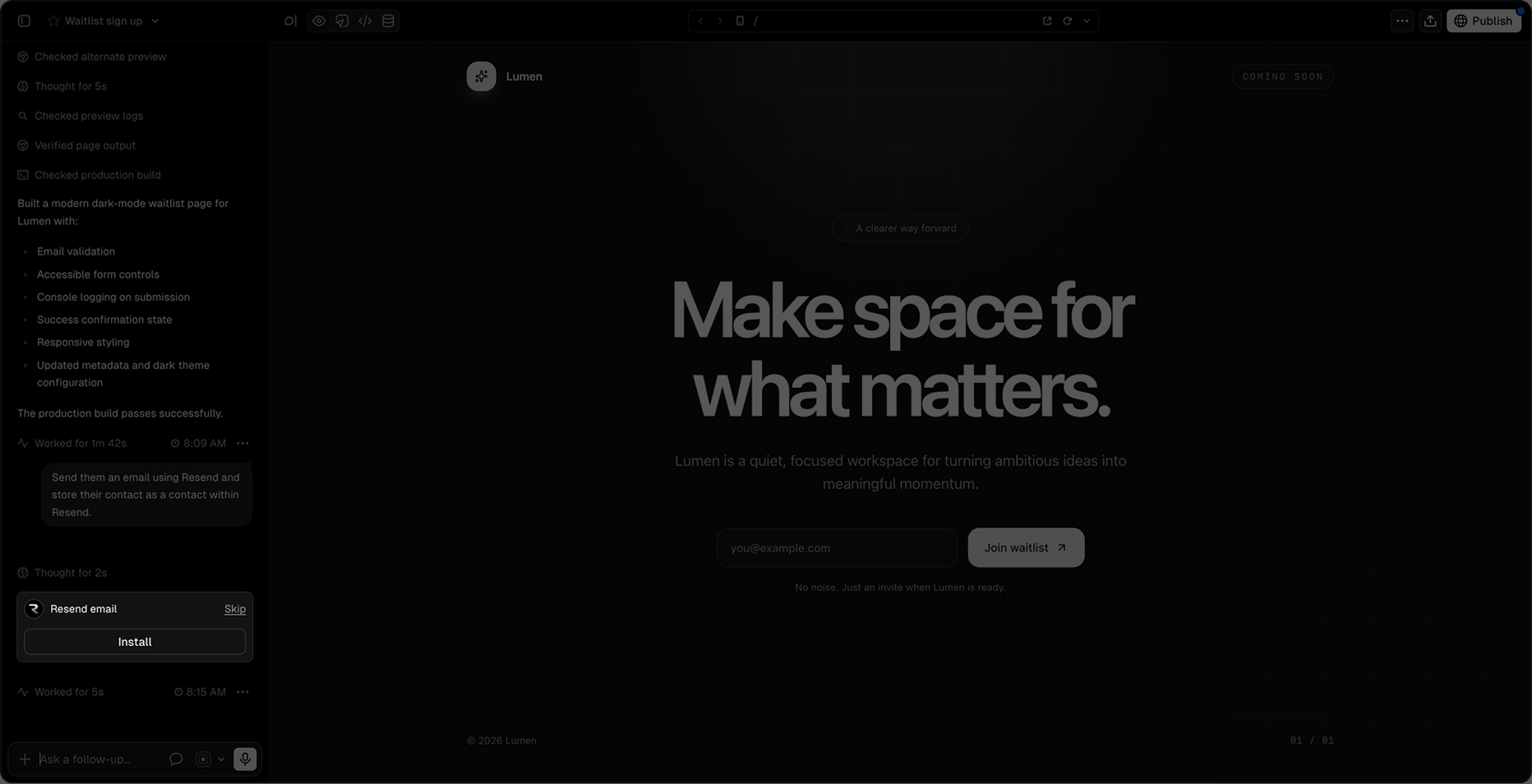 The integration will automatically set up a new Resend account, add the necessary environment variables to your v0 project, and verify your domain in Resend.
Once the integration is installed, click **Finish Setup** to complete the setup.
The integration will automatically set up a new Resend account, add the necessary environment variables to your v0 project, and verify your domain in Resend.
Once the integration is installed, click **Finish Setup** to complete the setup.
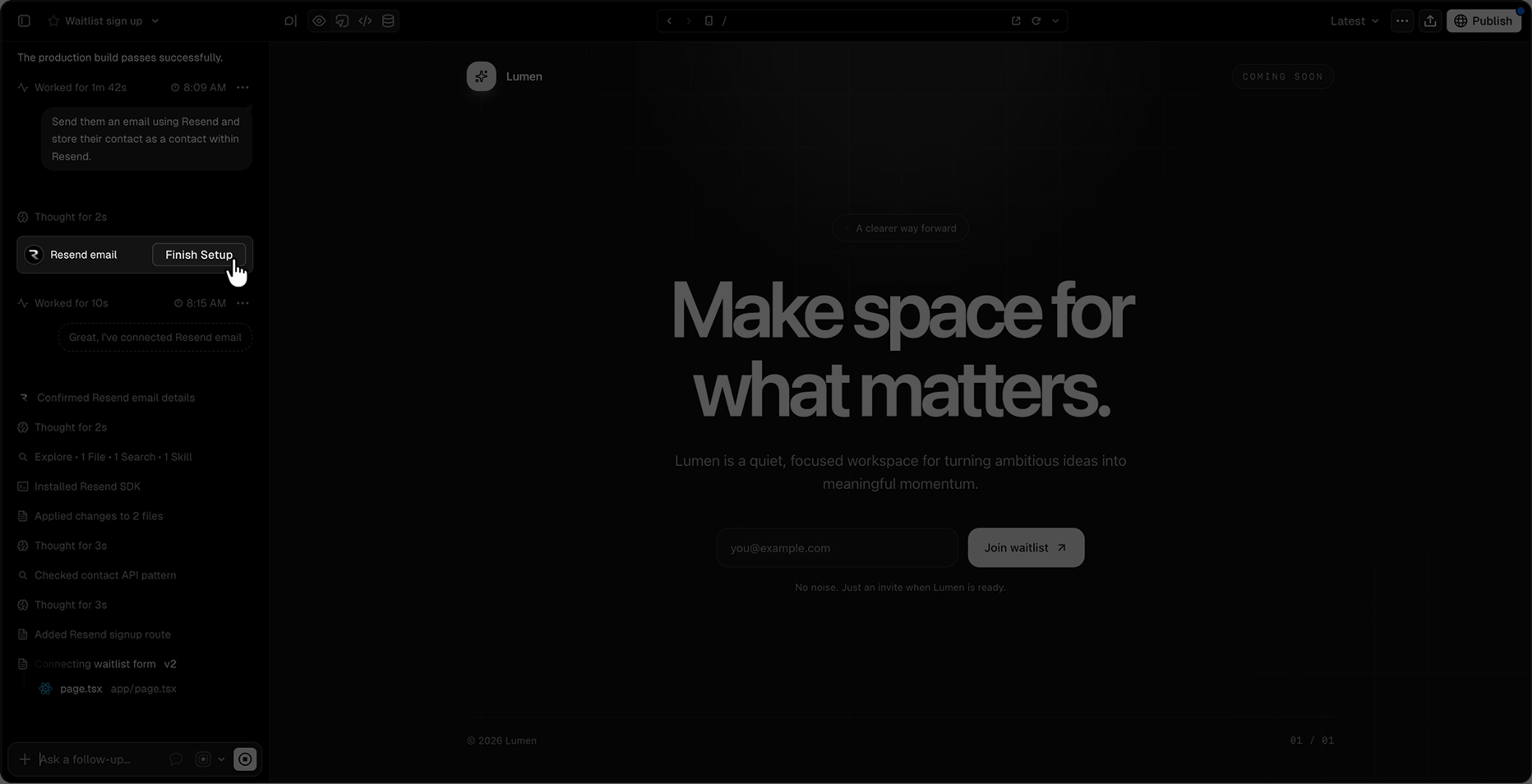 You'll be taken to the Resend dashboard, where you can confirm the domain has been verified.
Once you've confirmed your domain is verified, return to the v0 chat and tell the chat the domain is verified and which email it should use to send emails on your behalf.
You'll be taken to the Resend dashboard, where you can confirm the domain has been verified.
Once you've confirmed your domain is verified, return to the v0 chat and tell the chat the domain is verified and which email it should use to send emails on your behalf.